If you've ever tried cloning a private GitHub repository on a new computer, VPS, or hosting server, you may have encountered authentication errors such as:
403 Forbiddenor
401 UnauthorizedThis issue often confuses beginners because the same repository may work perfectly on their local machine.
In this guide, you'll learn why this happens and how to securely access a private GitHub repository using a GitHub Personal Access Token (PAT).
Why Private Repositories Require Authentication
Unlike public repositories, private repositories can only be accessed by authorized users.
When your computer is already signed in to GitHub, Git can use stored credentials to access private repositories automatically.
However, on a new machine or VPS, GitHub doesn't know who you are.
As a result, GitHub blocks access and returns an authentication error.
Common Error Messages
You may see errors like:
fatal: unable to access 'https://github.com/username/repository.git/'
The requested URL returned error: 403
or
401 UnauthorizedThese errors indicate that GitHub could not verify your identity.
Solution: Use a GitHub Personal Access Token (PAT)
A Personal Access Token acts as a secure authentication key for your GitHub account.
Instead of using a password, Git uses the token to verify that you have permission to access the repository.
Step 1: Open GitHub Developer Settings
- Log in to your GitHub account.
- Click your profile picture in the top-right corner.
- Select Settings.
- Scroll to the bottom of the left sidebar.
- Click Developer Settings.
- Select Personal Access Tokens.
- Click Fine-grained Tokens.
- Click Generate New Token.
Step 2: Configure the Token
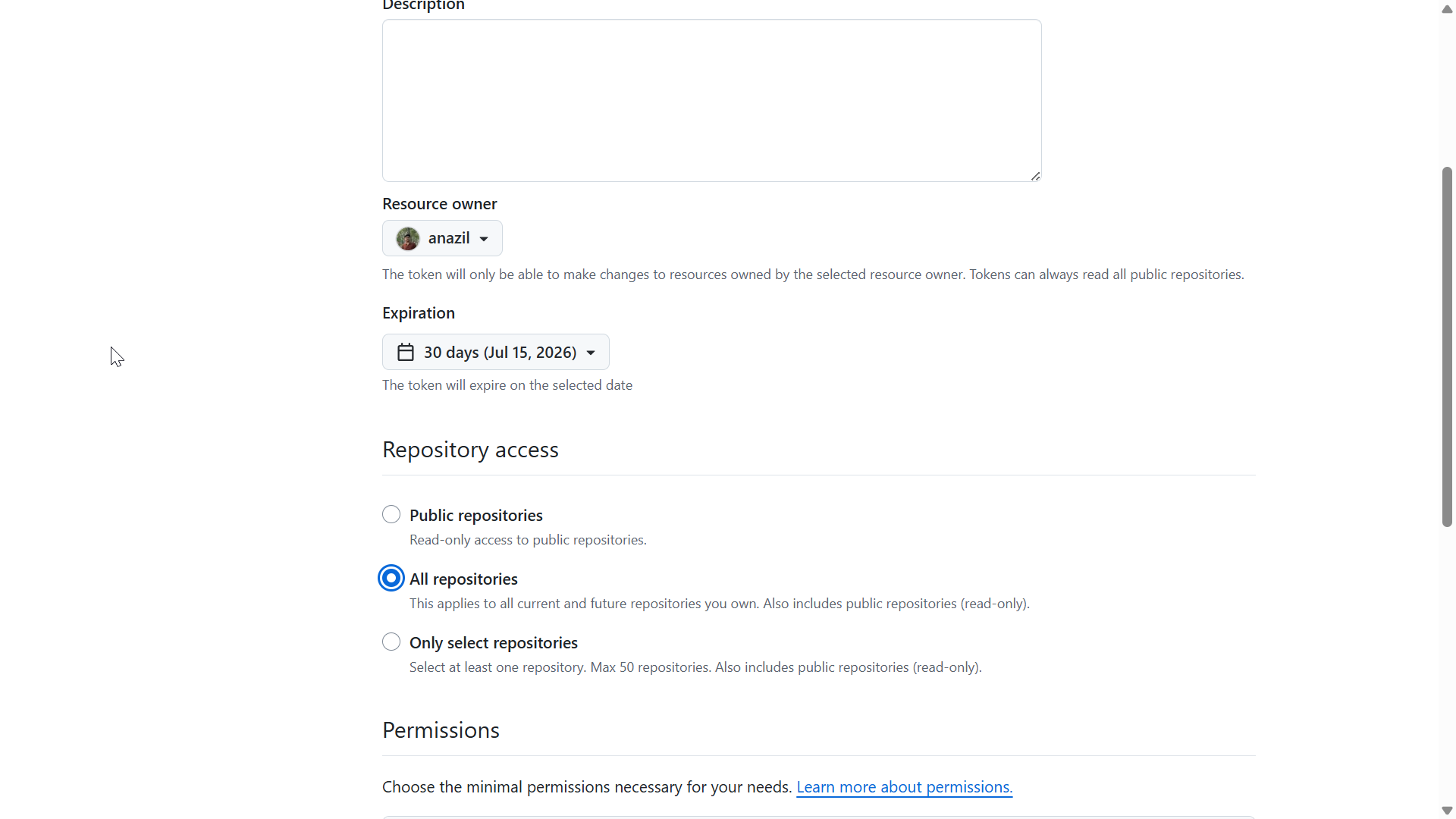
Give the token a name such as:
Private Repository AccessChoose an expiration period according to your needs.
Under Repository Access, select All repositories or choose a specific repository.
Screenshot: Repository Access Configuration
Step 3: Configure Repository Permissions
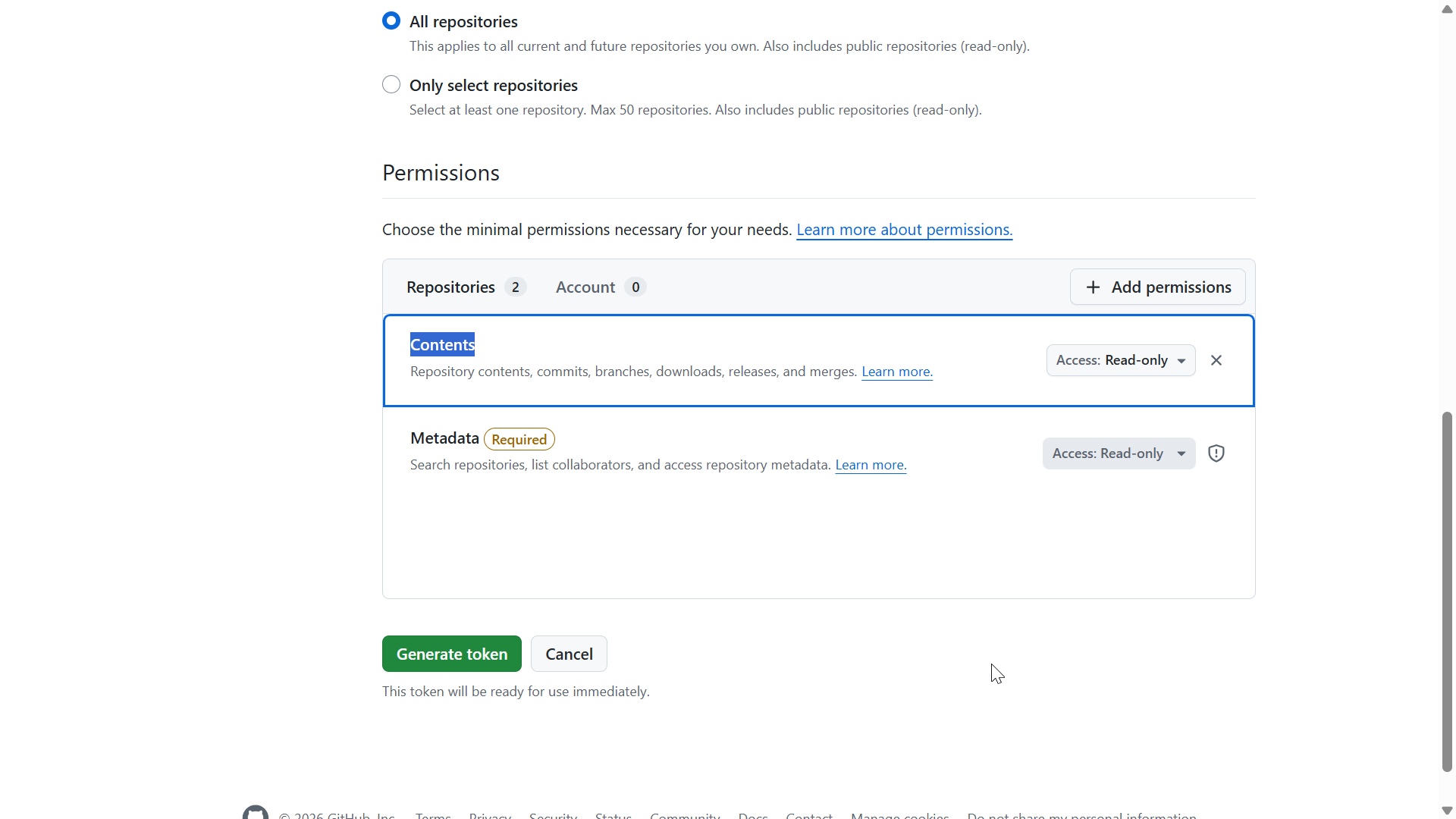
Scroll down to the Repository Permissions section.
Set Contents → Read and Write.
This permission allows Git to:
- Clone repositories
- Pull updates
- Push changes
Without the correct permissions, GitHub may return 401 or 403 errors.
Screenshot: Repository Permissions Configuration
Step 4: Generate the Token
- Click Generate Token.
- Copy the generated token immediately.
- Store it securely.
Important
GitHub only shows the token once. If you lose it, you'll need to generate a new one.
Step 5: Clone the Private Repository
git clone https://github.com/your-username/your-private-repository.gitGitHub will request authentication. Enter:
Username: your-github-username
Password: Paste your Personal Access Token.
GitHub will authenticate your account and allow access to the repository.
Verifying the Clone
If everything is configured correctly, Git should display:
Cloning into 'repository-name'...
Receiving objects: 100% ...
The repository will be downloaded successfully.
Why This Method Is Useful
Using a Personal Access Token allows you to:
- Keep repositories private
- Access repositories from VPS servers
- Deploy applications securely
- Avoid exposing source code publicly
- Follow GitHub's recommended authentication method
Troubleshooting
Error 403 Forbidden
Possible causes:
- Repository access not granted
- Incorrect repository permissions
- Token doesn't have access to the repository
Error 401 Unauthorized
Possible causes:
- Invalid token
- Expired token
- Incorrect authentication details
GitHub Login Popup Keeps Appearing
Remove old GitHub credentials from Windows Credential Manager and authenticate again using the new token.
Best Practices
- Keep repositories private whenever possible.
- Store tokens securely.
- Never share tokens publicly.
- Rotate tokens periodically.
- Use only the permissions you actually need.
Conclusion
Private GitHub repositories require authentication before access is granted.
If you're deploying applications to a VPS or working from a new computer, a GitHub Personal Access Token provides a secure and reliable way to access private repositories without making them public.
By configuring repository access and enabling the Contents permission, you can securely clone, pull, and manage private repositories from any authorized machine.
Written based on real-world deployment scenarios. Last updated: June 2026.